
Table of Contents
SSH Auto Login
Prerequisites on the target server:
vi /etc/ssh/sshd_config
PermitRootLogin yes
RSAAuthentication yes
PubkeyAuthentication yes
Then restart sshd service
ensure both the home directory and the .ssh directory on the server have the correct permissions.
On Synology, the home directory has 777 permissions and needs to be changed to:
sudo chmod 755 /var/services/homes/admin/
sudo chmod 755 /var/services/homes/admin/.ssh
check for errors by starting sshd with different port in debug mode like:
/bin/sshd -d -p 2222
#and on client use
ssh -vvv -p 2222 user@hostname
In order to automatically log into a remote host without having to enter a password, private/public keys need to be created and used:
1.) First time setup: create private/public key on your machine for the user you want to authenticate (root and regular user would be different and the keys are stored in ~/.ssh/id_rsa and ~/.ssh/id_rsa.pub ) using
ssh-keygen
2.) Log into remote host as the user you want
3.) Add the content of your local ~/.ssh/id_rsa.pub to the ~/.ssh/authorized_keys file on the remote host.
4.) done, now you can ssh from the source user/machine to the target user/machine without using a password.
This command run on the source PC should add the authentication automatically, avoiding the manual copy&paste thing.
ssh-copy-id -i user@remote-host
SSH Config
Once all of the above is done, you'll probably distributed your public key to various hosts. While putty on windows makes it reasonably easy to open up ssh sessions with saved credentials, while you are ssh'd into somewhere, you'd have to ssh manually from there.
ssh_config to the rescue
You can store ssh parameters in a config file and give each connection a short name.
For example, you could type in:
ssh something
instead of
ssh root@some-ip-or-hostname
There are more savings if you need to specify a different port or want to use ssh to forward ports or X.
To do this and use this, simply create a new file ~/.ssh/config and put in something like this:
~/.ssh/config
Host something
    HostName some.domain.com
    Port 22
    User root

Host somethingelse
    HostName 192.168.1.1
    Port 22
    User root
Save it and you can ssh something to log in as root on some.domain.com.
Further options are available from man ssh_config
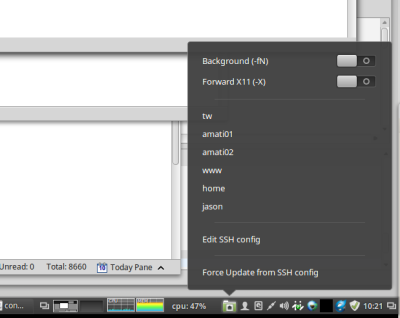
On a Gnome/Cinnamon desktop, you can add an applet to the panel (taskbar/system tray) which will give easy access to all ssh hosts configured via popup icon. It's the ssh launcher applet.
Generate new ssh key
The private and public ssh keys are stored in the home directory of the user in ~/.ssh/ as id_rsa and id_rsa.pub. To create a new ssh key, use the following command;
ssh-keygen -t rsa
This will ask to confirm whether the old key should be overwritten if one exists and for a passphrase.
# ssh-keygen -t rsa
Generating public/private rsa key pair.
Enter file in which to save the key (/root/.ssh/id_rsa):
/root/.ssh/id_rsa already exists.
Overwrite (y/n)? y
Enter passphrase (empty for no passphrase):
Enter same passphrase again:
Your identification has been saved in /root/.ssh/id_rsa.
Your public key has been saved in /root/.ssh/id_rsa.pub.
The key fingerprint is:
xx:xx:xx:xx:xx:xx:xx:xx:xx:xx:xx:xx:xx:xx:xx:xx root@hostname
The key's randomart image is:
+---[RSA 2048]----+
|                 |
|                 |
|                 |
|                 |
|                 |
|                 |
|                 |
|                 |
|                 |
+-----------------+
Beware that when creating a new or overwriting an existing key, all systems set up to accept the key need to be updated! You will not have access to any of those systems any longer!
It's a good idea to connect to the systems via ssh BEFORE changing the key, so that you can still update the authorized_keys file of the other systems.